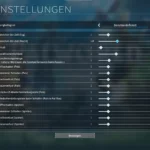
On PC, use Marvel Rivals’ in-game mouse controls under Settings → Keyboard → Combat. You do not need the launch-era configuration-file procedure described in the old version of this guide.
The developer’s version 20250110 patch notes document the addition of mouse acceleration and mouse smoothing settings in this category. These steps cover the PC keyboard-and-mouse settings.
Turn off mouse acceleration in the game
- Open Settings → Keyboard → Combat in the PC game.
- Set Mouse Acceleration to off. If you also want unsmoothed input, disable Mouse Smoothing separately.
- Apply changes if prompted, reopen the settings to check they remain selected, then try the same mouse movement in the practice range.
If the result still feels wrong
Change one setting at a time. Keep your mouse DPI and in-game sensitivity unchanged for the first comparison so you can judge the effect of the toggle. Use a short, repeatable movement in the practice range rather than changing several settings during a match.
If the option is missing, check that the installed game is updated and look for the Keyboard combat settings. Menu wording can vary with language. Note your client version and the missing option when asking support.
If you followed our old file instructions
Keep a backup before changing a configuration file again. If you set GameUserSettings.ini to read-only specifically for the old workaround, review that attribute before expecting the game to save new settings. Remove only changes you knowingly added; do not delete the whole configuration or a save folder as a shortcut.
Questions about the mouse settings
Do I need to edit GameUserSettings.ini?
Use the documented in-game controls. The old INI edit and read-only step are not needed for that settings-menu route.
Does turning acceleration off guarantee better aim?
No. Keep sensitivity and DPI fixed while comparing, and judge whether the response suits you. A different aiming feel alone does not establish which setting is responsible.
Historical screenshots
Archived screenshots: the December 2024 file workaround
These older screenshots show the file-based instructions previously published here. They are retained as historical reference, not as the current steps. Use the documented in-game controls above.