
Palworld world settings, dedicated-server admin commands and PC trainers are three different tools. A trainer option called “Unlimited Health” is not automatically a slash command you can type into game chat. Start with the mode you actually play.
For your own world, check its custom settings first. For a dedicated server, the owner controls settings and admin access. For a Windows PC trainer, check the exact game edition and build. The Xbox label on a PC trainer page does not mean it runs on an Xbox console.
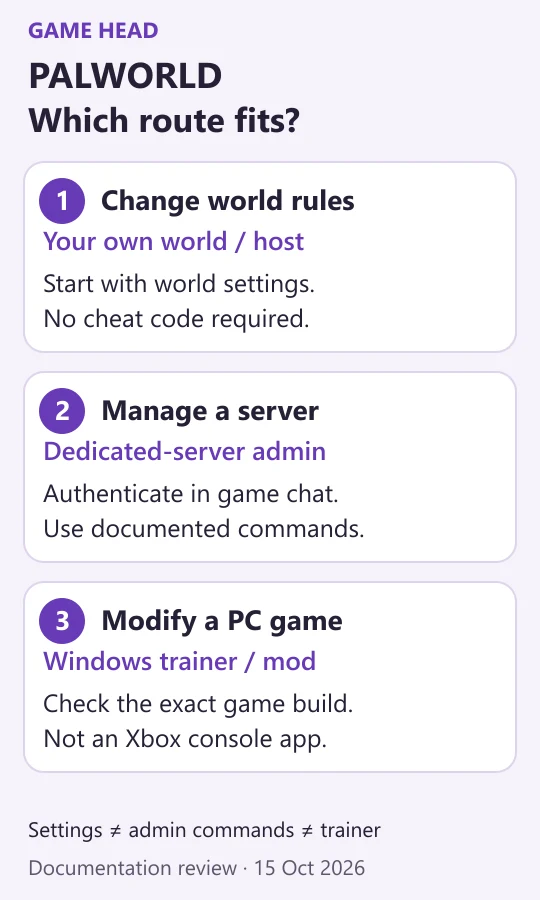
Single player and co-op: start with world settings
If your goal is less grinding, decide which part is frustrating before changing everything. Want faster progression, more resources, or a different death penalty? Those are world-rule questions. Unlimited health or an instant item-spawn tool is a different request.
For an existing local world, use its world-settings screen before loading the save. Our world-settings guide explains that route. A hosted co-op world is controlled by its host; joining a friend does not grant the same authority as owning a dedicated server.
| Goal | Documented server setting |
|---|---|
| More experience | ExpRate |
| More gatherable resources | CollectionDropRate |
| Different death drops | DeathPenalty |
| Slower equipment wear | EquipmentDurabilityDamageRate |
These names come from Pocketpair’s server documentation. They are useful when you administer a server; the menu labels and available controls in a local world can differ. Change one rule, record the original value and compare the result before adjusting another.
Dedicated-server admin commands
The server must have an AdminPassword configured. In the documented PC input flow, press Enter to open chat, then authenticate with /AdminPassword <your-password>. Replace the placeholder; do not include the angle brackets. The admin password is distinct from the password players use to join.
| Command | Purpose |
|---|---|
/Info | Server information |
/ShowPlayers | Connected players |
/Save | Save world |
/Broadcast <MessageText> | Server announcement |
/TeleportToPlayer <SteamID> | Go to player |
/TeleportToMe <SteamID> | Bring player to you |
Replace a SteamID placeholder with the intended player’s actual identifier. /ShowPlayers helps identify connected players. Read the command before using it: /TeleportToMe moves somebody else, while /TeleportToPlayer moves you. The official documentation is the reference for additional commands and current syntax.
Why the old cheat codes fail
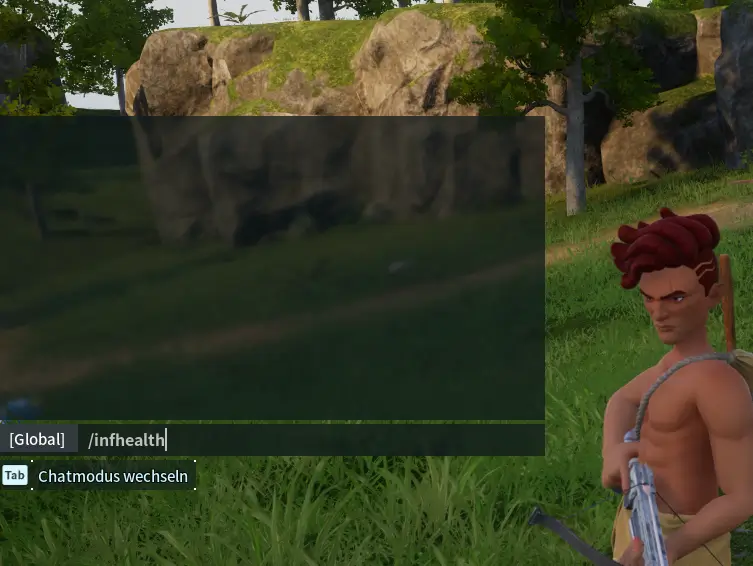
Earlier versions of this article incorrectly presented trainer functions as built-in chat codes. We removed that table, the generic tilde-console instructions and two community quotes that had no traceable source. Pocketpair’s documented command list does not establish built-in god-mode or resource-spawn commands.
About the original image below: it shows /infhealth typed into chat. A typed command is not evidence that it worked. Keep this distinction in mind when comparing screenshots or copied cheat lists.
PC trainers: supplier claims and platform limits
WeMod’s Palworld page lists functions such as health, stamina and inventory modification through its Windows application. They are interface options, not the slash commands from the removed table. Its Steam and Xbox listings refer to supported PC editions; they do not prove support for console or cloud-streamed play.
Before choosing a trainer, verify its current build support and terms on the supplier’s page. A free download alone does not establish that every feature is free. We have not installed or tested the trainer and do not certify its compatibility or safety.
WeMod’s support explanation of multiplayer use says that even private or cooperative multiplayer functionality is not guaranteed or supported. That is a general supplier policy, not a Palworld multiplayer test. For a shared world, agree on settings with the host rather than treating a PC trainer as a server-administration tool.
Mods, backups and troubleshooting
Mods are separate again. Pocketpair’s dedicated-server mod guide currently specifies the Windows server edition and server-compatible mods. Its instructions should not be applied unchanged to every client or console. It also warns about crashes and save-data corruption.
- Make a recoverable copy of the world and its configuration before experimenting.
- If an admin command fails, check server ownership, authentication and exact documented spelling first.
- If a settings edit has no effect, verify the active
PalWorldSettings.ini; editing the default sample alone does not apply it. - If a trainer stops working after an update, check the supplier’s build support instead of trying invented chat codes.
For regular progression, continue with our wool guide or use the Palworld map overview.