
To move Brawl Stars to a new phone, log into the Supercell ID already connected to the account you want to keep. Use that ID’s email, then check your player tag and progress on the new device. If the old account was never linked or you cannot access its email, choose the recovery route below. Keep the old phone’s installation while you check.
Choose your starting point
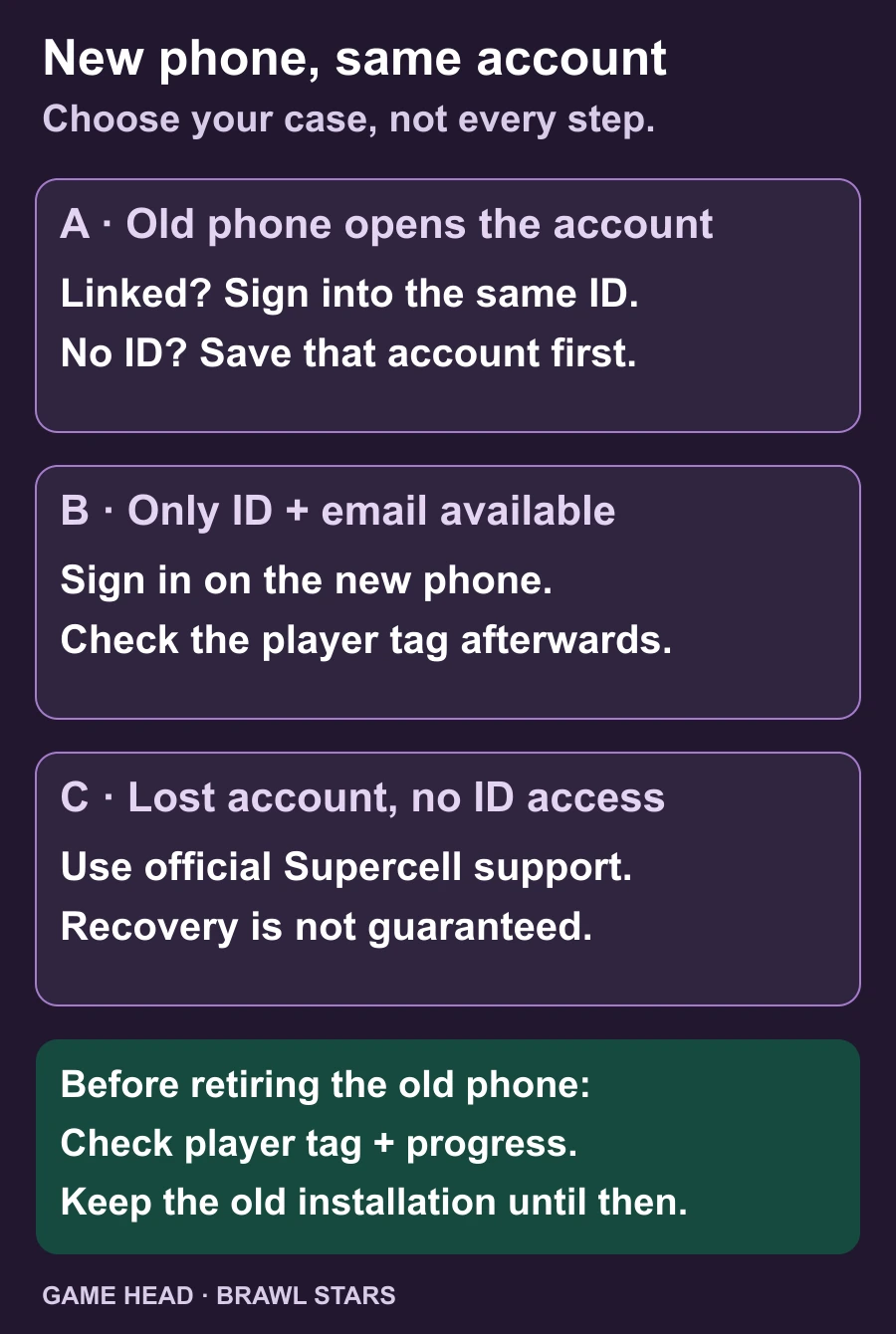
| Your situation | What to do next |
|---|---|
| The correct account still opens and is linked | Sign into that existing Supercell ID on the new phone. |
| The correct account opens but is not linked | Save that account with Supercell ID on the old phone first. |
| The old phone is unavailable, but you know the linked ID and can access its email | Use the existing-ID sign-in on the new phone. |
| You cannot access the linked email, or the lost account was never linked | Use official Supercell support; a new empty profile is not a substitute for recovery. |
Move an account that already has a Supercell ID
Supercell’s recovery help says an existing ID and access to its email may let you regain the linked progress yourself. Its Supercell ID overview describes access across mobile devices. Use the following sequence when the old account is still available; if the phone is lost, start with the ID you previously used and check the result carefully.
- On the old phone, open the Brawl Stars account you want to keep. Note its player tag and check in Settings → Supercell ID that it is connected. Make sure you can access the email used for that ID.
- Install Brawl Stars from the official app store on the new phone. Open the in-game settings and the Supercell ID menu. Choose to log into an existing ID.
- Enter the email for the existing ID and complete sign-in with the latest verification code sent to that address.
- Check the player tag, account name and familiar progress on the new phone. Keep the old installation until you have confirmed that this is the account you intended to move.
A familiar name alone is not a sufficient check if you use several profiles. Compare the player tag as well as the account you recognise. Do not register the new, wrong profile just because it appeared first.
The old account is still there, but has no Supercell ID
Open the correct game profile on the old phone before registering anything. Follow Supercell’s account-saving instructions from that profile’s settings: open Supercell ID, choose to create an ID and use a valid email that has not already been used for one. Confirm the email and finish the displayed setup. Then check that the intended game account is connected before signing in on the new phone.
This is the branch for an accessible, unlinked account. If the account is already lost, creating an ID on a fresh profile is not the same procedure. Use the support route instead.
The new phone loads the wrong account
Check which email you used for Supercell ID sign-in. Compare the loaded player tag with the one from your intended account. If the two profiles differ, return to the sign-in for the existing ID associated with the account you want. The email used for your phone’s app store does not by itself tell you which Supercell ID you entered.
If you no longer know that ID or cannot access its email, use the official recovery instructions. Avoid deleting either profile or repeatedly reinstalling the app while the account identity is unresolved.
No email code, or the code does not work
Supercell’s verification-code help distinguishes registering a new ID from logging into an existing one. For a device move, check the existing-ID sign-in and its original email first.
- Check the email address you entered for spelling mistakes and whether it belongs to the intended ID.
- Search that inbox for “Supercell ID”, including spam and folders affected by mail rules.
- Use the most recent code. If you requested another one, an older code will no longer work.
- Stop guessing: Supercell says three consecutive incorrect code entries prevent a new code being sent for 24 hours. Wait rather than repeatedly submitting codes.
When you need Supercell support
If the account was never linked and is no longer accessible, or the linked email cannot be used, Supercell may be able to help after checking ownership. Open the game’s Settings → Help and Support and use its contact option. Recovery is not guaranteed.
Have the player tag, account name and level, club name if relevant, and transaction IDs for account purchases available if the official recovery process requests them. Supercell may ask for a new email not already connected to an ID. With Account Protection enabled, its official recovery process can use SMS verification or a recovery code. Enter verification information only in the official process; do not post codes or purchase records in Game Head comments.
Before retiring the old phone
Open the intended account on the new device and check its player tag and progress. Supercell’s reinstall guide calls reinstalling a last resort for persistent crashes and asks you to check the account link first. An unexpected profile is a reason to verify the login, rather than erase the only device that still opens the right account.
Questions about moving a Brawl Stars account
Do I need a new Supercell ID for a new phone?
If your Brawl Stars account already has a Supercell ID, log into that existing ID. Registering a new ID on a fresh game profile does not identify which old account you want back.
Can I move from Android to iPhone?
Supercell describes Supercell ID as a way to access your game accounts across mobile devices. For an existing linked Brawl Stars account, use the same ID on the new device and verify that the intended player tag and progress have loaded.
Should I reinstall Brawl Stars if the wrong account loads?
Check the Supercell ID email and player tag first. Supercell presents reinstalling as a last resort for persistent crashes, with an account-link check beforehand. Reinstalling does not resolve which account you should sign into.
This guide is unofficial and is not endorsed by Supercell. See Supercell’s Fan Content Policy.