
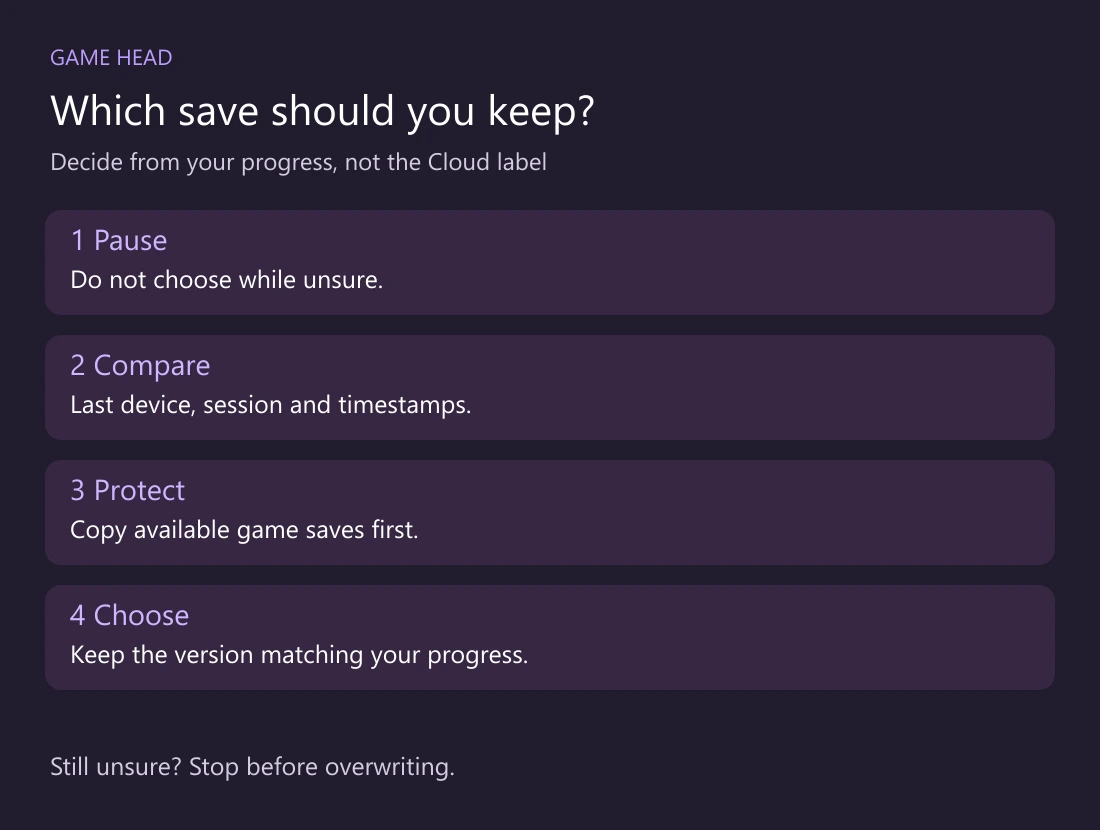
Keep the save that matches your last intended progress, whether it is local or in the cloud. Compare the displayed times with the device you last played on. If that still leaves doubt, stop before choosing and protect any available copies.
First, identify the warning
A Steam Cloud conflict means the two copies differ. An “unable to sync” warning means synchronization failed; Valve advises fixing that before launching. Neither message tells you which copy contains the quest you just finished.
Compare the session, not just the clock
- Write down where you last made progress: this PC, another computer or a Steam Deck. Note whether that session was offline.
- Compare that session with the local and cloud timestamps in the conflict window. A newer time is a clue; ask what actually happened in that session.
- If you accidentally started a fresh game afterward, do not assume its later timestamp represents the progress you want.
Protect the copies you still have
Before replacing anything, copy the available game-save files into a separate folder. Keep the originals in place. The folder and file set depend on the game: use its developer’s save-location instructions rather than copying a folder chosen at random.
| Situation | Your next decision |
|---|---|
| Latest intended session was on this device | Check that the local timestamp fits; keep a copy before selecting it. |
| Latest intended session was on another device | Check that device before accepting an older-looking copy here. |
| Neither time fits your session | Cancel the choice and ask the game’s support team which files hold your saves. |
After choosing, let synchronization finish
Finish and close the game before moving to another device, then allow its upload to complete. Steam Cloud synchronization depends on the game’s integration; Windows-to-Linux save compatibility is not guaranteed just because a title has cloud support.
If progress is already missing, keep remaining copies and describe the last successful session to the developer. A cloud toggle is not a recovery button. Avoid deleting saves or generating a fresh save just to force another conflict.