
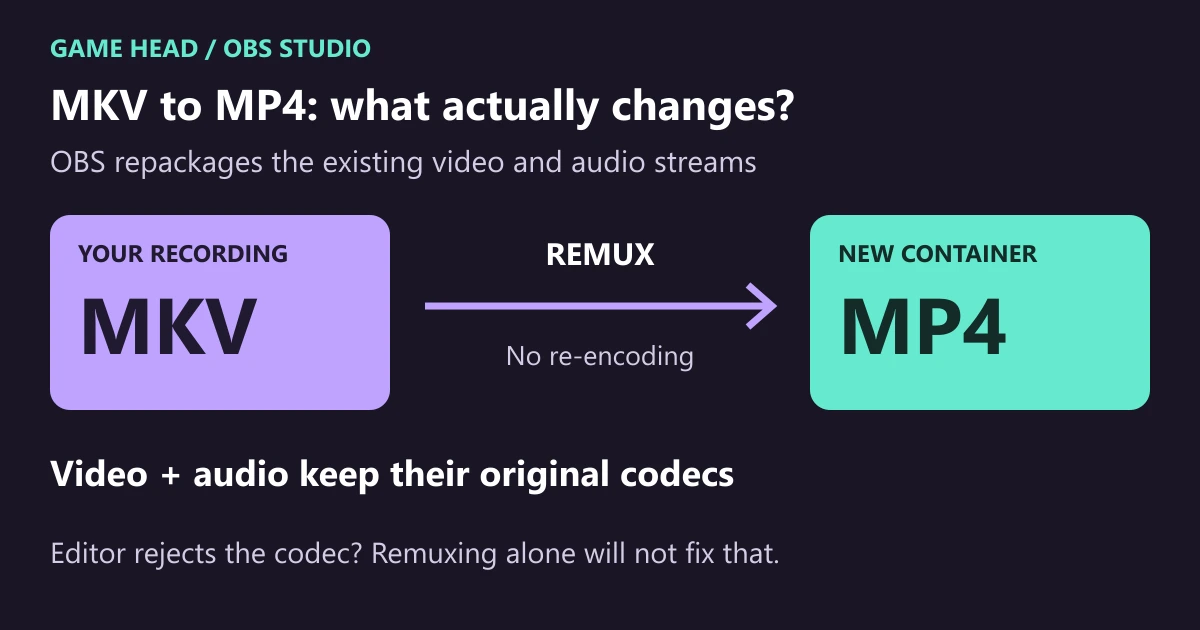
To turn an OBS recording from MKV into MP4, use File → Remux Recordings. OBS repackages the existing video and audio without re-encoding them. This avoids another lossy encoding pass, but it does not make an unsupported video codec compatible with your editor.
Remux an existing MKV recording in OBS
The built-in tool is described in the OBS recording guide. You can use it after the recording has finished:
- Open OBS and choose File → Remux Recordings.
- Select an empty cell under OBS Recording, then choose your MKV file. You can also drop the file into this window.
- Check the destination under Target File. Use a different filename if an MP4 already exists.
- Click Remux and wait for completion.
- Import the new MP4 into your editor. Check the beginning, a later section and every audio track you need before removing the original.
What changes—and what stays the same
MKV and MP4 are containers: they hold encoded video and audio. OBS copies those streams into the destination file. An H.264 recording stays H.264; an AV1 recording stays AV1. Resolution and recorded frame rate are not upgraded, and remuxing is not a way to shrink a large recording.
Keep enough free disk space for both files. The new MP4 is a separate output, so keep the MKV until your actual editing project works.
Should you record in MKV or Hybrid MP4 next time?
For an existing MKV, remuxing is the practical next step. For future recordings, check the available formats under Settings → Output → Recording. The official Hybrid MP4/MOV documentation distinguishes these from traditional MP4/MOV: Hybrid MP4 arrived in OBS 30.2, and Hybrid MOV in 32.0.
| Your situation | Useful starting point |
|---|---|
| You already have an MKV recording | Remux it, then try the MP4 in your editor. |
| You want an MP4 directly from a new recording | Try Hybrid MP4 with a short recording using your actual codecs. |
| Your Mac workflow needs ProRes | Check Hybrid MOV and your editor’s requirements. |
| Your editor rejects the recorded codec | Choose a supported codec for future recordings, or transcode a copy. |
Hybrid files are designed to remain recoverable when recording is interrupted. Traditional MP4/MOV rely on finalization and are more vulnerable to an unfinished recording. That distinction does not guarantee recovery from every damaged file. The OBS format overview also lists codec compatibility.
The MP4 still will not import, or audio seems missing
- Video still rejected: check which codec the recording actually uses and which codecs your editor supports. Changing the container does not convert AV1 or HEVC into H.264.
- Only one audio track plays: inspect the imported clip’s audio channels/tracks in the editor. Do not judge a multitrack recording only by a player that selects one track.
- Microphone absent in the original: remuxing cannot reconstruct an unrecorded source. Fix the recording setup before your next session.
- Remuxing reports an error: keep the original, check the destination and free space, and avoid treating an incomplete output as a finished backup.
If you want game sound, microphone and Discord available separately in the edit, set up the OBS recording tracks before recording. For the initial scene and audio setup, start with our OBS setup guide.