

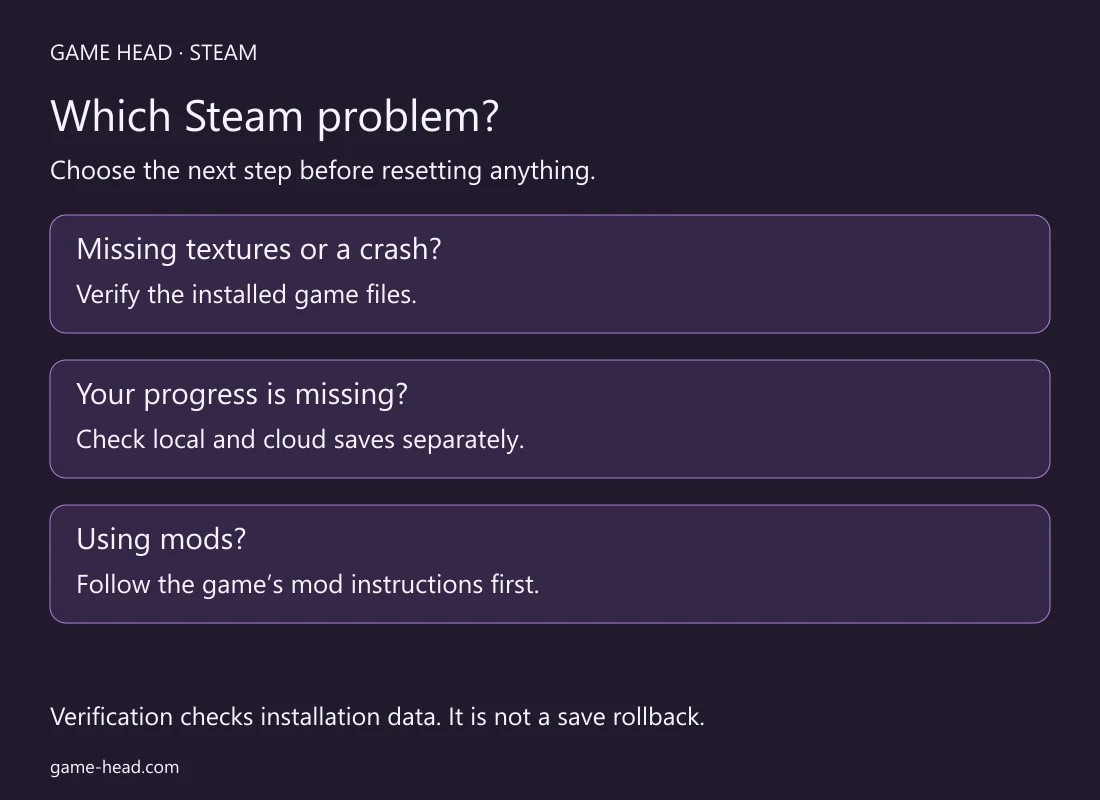
To verify a Steam game, open its Properties in your Library, choose Installed Files and start Verify integrity of game files. This checks the installed game data and can repair damaged files. It is worth trying when textures are missing or a game crashes, but it is not a way to select an older save.
Before you start
Close the game and restart your computer and Steam. Run the check for one game at a time; avoid starting a disk-heavy task alongside it. Valve’s verification guide specifically advises against simultaneous checks and other intensive work such as a virus scan. Leave security software enabled; just let a running scan finish first.
If you use mods, check the game’s mod troubleshooting instructions before changing the installation. Keep a separate copy of saves you want to protect, using the save location documented for that game. A verified installation does not tell you whether a particular save or mod combination will work.
Verify the installed files
- Open Library in the Steam desktop client.
- Right-click the affected game, or use the gear on its Library page, and open Properties.
- Select Installed Files → Verify integrity of game files.
- Let the check finish and allow any repair download to complete. Then start the game and retry the exact place or action that failed.
Valve says the check can take several minutes. There is no useful universal completion time: wait for Steam’s result rather than treating a pause in the progress bar as proof that it has frozen.
What does the result mean?
| Result | What to do next |
|---|---|
| Files need to be acquired again | Let Steam finish the repair, then reproduce the original problem. |
| The check finishes, but the crash remains | Keep the result and exact error for game-specific troubleshooting. |
| One or more files cannot be verified | Check the configuration-file exception below before repeating the whole process. |
Why can a file still fail verification?
Valve notes that some games report local configuration files that should not be replaced during verification. That message alone is not a reason to reinstall. If the game now works, do not keep rerunning the check just to chase a different file count. If the same crash remains, report both the symptom and the verification result; the installation troubleshooting guide covers further repair steps.
Will this restore a save or remove mods?
Treat your save separately from the installation. Valve explains that developers choose where saves are stored; there is no single folder that covers every game. If the problem is missing progress or a choice between local and cloud data, use our Steam Cloud conflict guide before replacing either version.
Do not assume verification is a complete mod reset. For example, SEGA’s Total War instructions handle Workshop removal and file verification as separate steps, and warn that a mod-dependent campaign may need those mods. Follow the instructions for your game instead of deleting a generic folder or testing a valuable save without its required mods.
If the game still will not work
Write down the exact error, when it appears and whether verification triggered a download. Add the game version and any mods you use when asking the developer for help. Change one thing at a time and retry the same failure point; otherwise you cannot tell which change helped.
Questions about Steam file verification
Does verifying game files restore an older save?
No. The check verifies installed game files; it is not a save rollback. If progress is missing or Steam asks you to choose between local and cloud data, check those saves separately before replacing either version.
Should I reinstall if one file cannot be verified?
Not just because of that message. Valve says local configuration files may intentionally remain unverified. Check whether the game now works; if the original error remains, record both the error and the verification result.
Can I verify several Steam games at once?
Valve advises against it. Check one game at a time and let other disk-heavy work finish first. Do not disable your security software.