
Wuthering Waves supports specific wireless controllers on Android and iPhone. Pair a supported model with your phone, then activate Controller Mode in the game. A Bluetooth connection alone does not tell you whether the game is receiving inputs.
Which mobile controllers does Kuro list?
Kuro’s version 3.7 support list names Xbox-series, Xbox Elite-series, DualShock 4, DualSense and DualSense Edge wireless controllers for mobile. Do not apply its separate PC wired-controller or XInput advice to your phone.
Check the controller’s own device requirements as well. For example, Sony lists Android 12 or later and iOS/iPadOS 14.5 or later for DualSense. The fact that a phone can run the game does not establish that it meets those controller requirements.
Connect the controller and activate the game mode
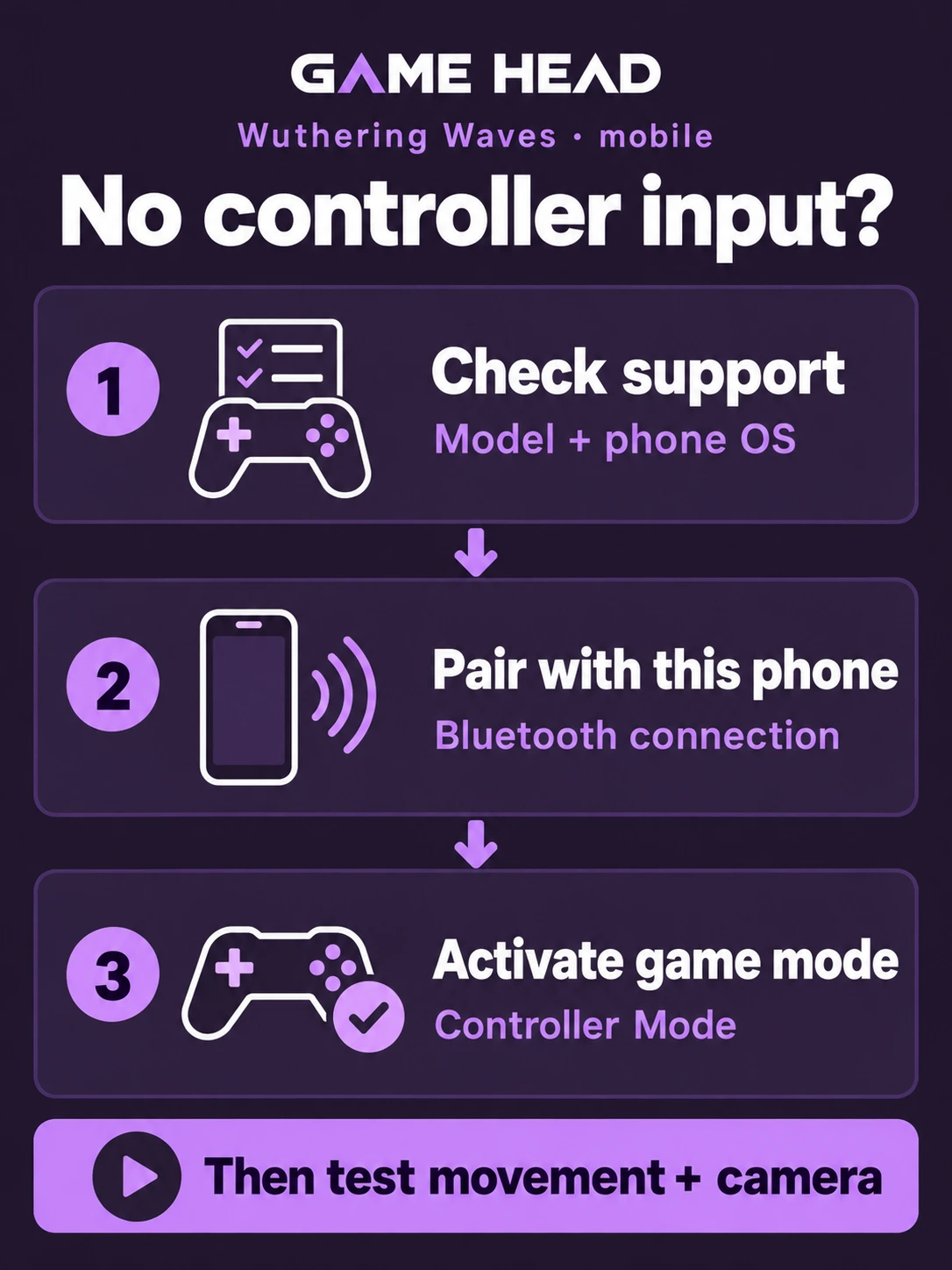
Kuro’s setup instructions describe pressing a controller button on the main interface and switching modes through Settings. Work through the phone connection and the game mode separately:
- Check the support list and your controller’s phone OS requirements. Update the game before troubleshooting an old installation.
- Put the controller into Bluetooth pairing mode using its manufacturer’s instructions, then select it in your phone’s Bluetooth settings. Check that it is connected to this phone.
- Open Wuthering Waves and use the touchscreen until the game’s main interface has loaded.
- Press a controller button and follow the Controller Mode prompt. If needed, use the game’s Settings to switch to Controller Mode while the controller remains connected.
- In a safe area, test movement, the camera and a menu before entering combat. Check the displayed button prompts before changing bindings.
For a DualSense, start with the controller off and disconnect its USB cable. Hold Create + PS until the light bar blinks, then select it in Bluetooth settings. On iPhone or iPad, Apple’s pairing guide also explains how to reconnect a controller that has switched to another device.
Paired, but the game still ignores inputs?
| What you see | What to check next |
|---|---|
| The controller is missing from Bluetooth | Follow the controller maker’s pairing instructions first. On Apple devices, check software/firmware updates and, if needed, forget and pair the controller again. |
| Bluetooth says connected, but the game stays on touch controls | Try the in-game mode switch with the controller connected. Recheck the exact model and phone OS. |
| An unlisted wired or third-party model does not respond | Its working in another app is not confirmation of native game support. Do not substitute the PC compatibility list. |
| The game responds, but buttons behave differently | Check game bindings and any applicable phone controller profile. Change one setting at a time so you can undo it. |
On supported iPhone/iPad setups, Apple places controller customization under Settings → General → Game Controller from iOS/iPadOS 16. That customization requirement is separate from the requirements for connecting a particular controller. Its connection and troubleshooting guidance is the place to start if the phone itself will not keep a connection.
Before buying a replacement
Write down your phone model, OS version, exact controller model and connection type. Compare those details with the developer and manufacturer information. A product page saying “works with iPhone” answers a different question from whether this game supports that model. If you ask for help, include which stage fails: pairing, switching modes or specific buttons.
Also playing Genshin Impact on Android? Our Genshin controller guide for Android covers its own supported models and Android requirements. Check each game separately before buying a controller.
Mobile controller questions
Does Wuthering Waves support controllers on Android and iPhone?
Yes, for the specific wireless controller families in Kuro’s mobile support list. Your phone must also meet the requirements of the game and the particular controller.
Is every USB-C or Lightning gamepad supported?
The cited mobile list covers wireless models. It does not establish support for every wired or telescopic controller. Check the exact model, connection type and native Wuthering Waves support before buying.
Why does my controller work in another game but not Wuthering Waves?
Another game working does not confirm this game’s compatibility or input mode. Check the model against Kuro’s list, confirm the phone connection, then try the in-game Controller Mode.
Do I need a touchscreen-mapping app?
Kuro documents a native Controller Mode for supported mobile controllers. Start with that setup rather than adding a mapping app to compensate for an unchecked model or connection.