
Genshin Impact supports specific Bluetooth controllers on Android: DualSense, DUALSHOCK 4, Xbox Wireless Controller and Xbox Elite Wireless Controller Series 2. Check both your controller and your phone before buying anything: the controller list and the game have separate Android requirements.
Which controllers are officially supported?
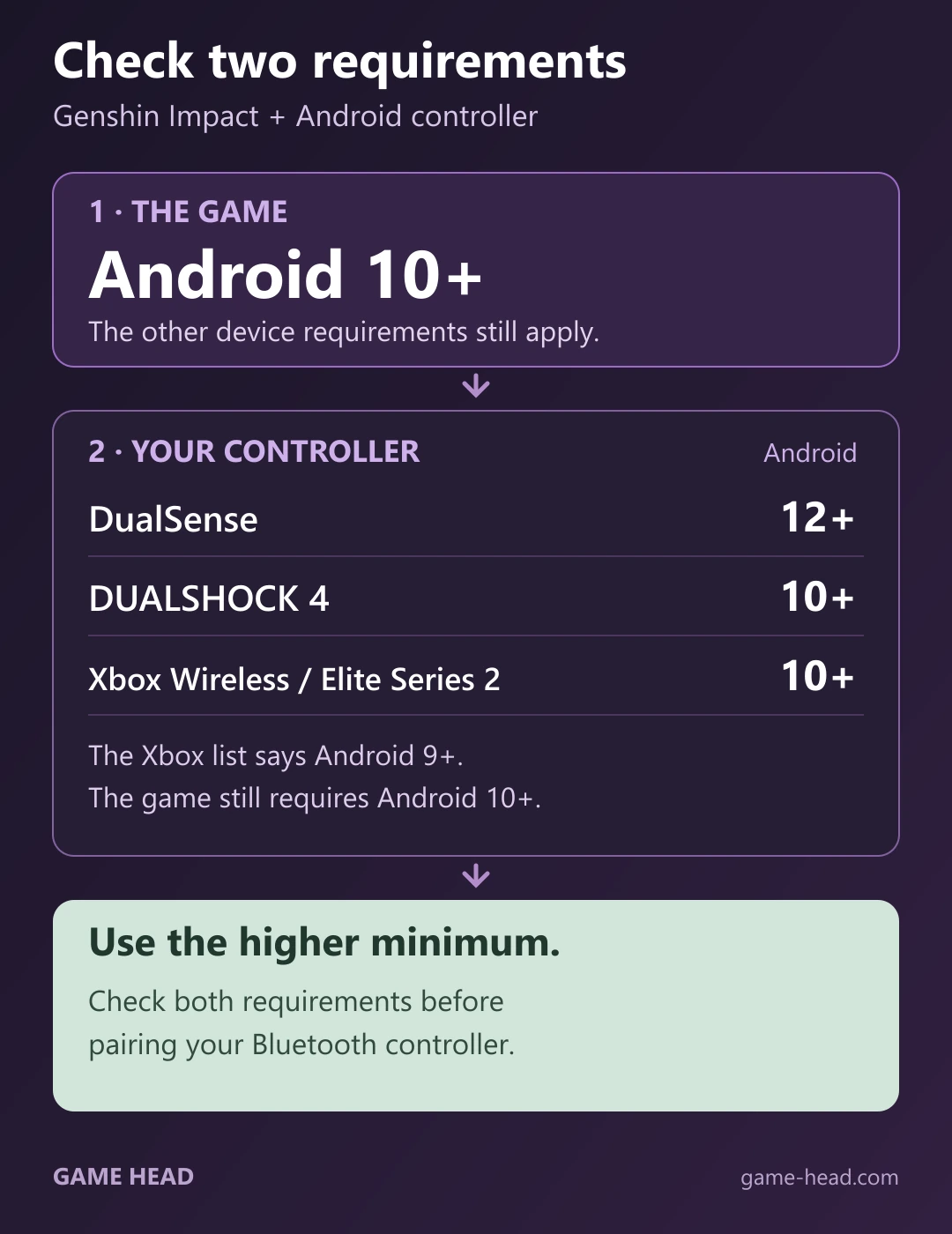
HoYoverse’s controller list names the following models for Android over Bluetooth. The last column combines that list with the current game requirements; the higher Android requirement applies.
| Controller | Controller list | With Genshin |
|---|---|---|
| DualSense | Android 12+ | Android 12+ |
| DUALSHOCK 4 | Android 10+ | Android 10+ |
| Xbox Wireless | Android 9+ | Android 10+ |
| Xbox Elite Series 2 | Android 9+ | Android 10+ |
That Android 9 entry for Xbox is easy to misread. It is a controller requirement, while Genshin’s current supported Android specifications start at Android 10. Meeting an OS minimum alone does not make every phone suitable: processor, graphics, memory and available storage still matter.
Before you connect
- Check the exact controller model rather than its button layout. An Xbox-style third-party pad is not automatically an Xbox Wireless Controller.
- Check your Android version and the rest of Genshin’s device requirements. For DualSense, Android 12 is the relevant minimum.
- If you already own a listed controller, start with that one. You do not need to buy a phone grip or a different pad just to establish compatibility.
Pair a PlayStation controller with Android
For a first Bluetooth pairing, Sony’s DualSense instructions and DUALSHOCK 4 instructions use different buttons:
- With the controller switched off and its USB cable disconnected, hold Create + PS on DualSense, or SHARE + PS on DUALSHOCK 4, until the light bar flashes.
- Open Bluetooth pairing on the phone, select the controller and follow the pairing prompts. Menu names vary between phone makers and Android versions.
- Check that Android actually shows the controller as connected. A device saved in the paired-device list is not necessarily connected right now.
Google explains the Android pairing controls. If you use an Xbox controller, follow Microsoft’s instructions for your model to enter its pairing mode, then select it on the phone.
After connecting, open Genshin and check whether it accepts controller input. Bluetooth connection and input inside the game are separate checks: a successful pairing alone does not establish that a particular gamepad works in Genshin.
If the controller does not work
- It does not appear in Android: check that it is in pairing mode and Bluetooth is enabled. Recheck the controller maker’s instructions for the exact model.
- It is paired but disconnected: reconnect it from Android’s Bluetooth list. If the connection remains unreliable, try switching Bluetooth off and on and restarting the devices, as explained in Google’s Bluetooth troubleshooting.
- Android is connected but Genshin does not respond: compare the exact model and Android version with the supported list first. Record the phone model, controller model and what happens in the game before contacting support.
- It is a USB-C or unlisted controller: ask for compatibility with the Android version of Genshin specifically. Support for Android generally, or for Genshin on another platform, is not the same claim.
Also playing Wuthering Waves? Use its mobile-controller guide separately: supported models and requirements belong to each game, so do not transfer Genshin’s list to it.
Common questions
Can I use a PS5 controller on Android?
The standard DualSense wireless controller is on HoYoverse’s Android Bluetooth list, with Android 12 or later required. Do not extend that listing automatically to every similarly named model.
Why does the Xbox entry say Android 9?
That is the controller-specific entry. The current game requirements start at Android 10, so both requirements must be met; the controller entry is not an Android 9 exception for Genshin.
What about USB-C controllers from Backbone or GameSir?
The official Android list cited here names particular Bluetooth models. An unlisted controller is not thereby proven incompatible, but this list does not establish support for it. Check the exact model, connection and Android game version before buying.
Should I start with a touch-mapping app?
Start with normal Bluetooth pairing for an officially listed controller. Android’s pairing process does not require a touch-mapping app. Investigate the actual model and connection before adding a workaround or buying extra software.