Fortnite supports controllers on phones, but the right compatibility list depends on how you play. First check whether your phone sees the controller, then whether you use the installed Fortnite app or a cloud service. A working Bluetooth connection alone does not prove that this game or streaming service supports every button.
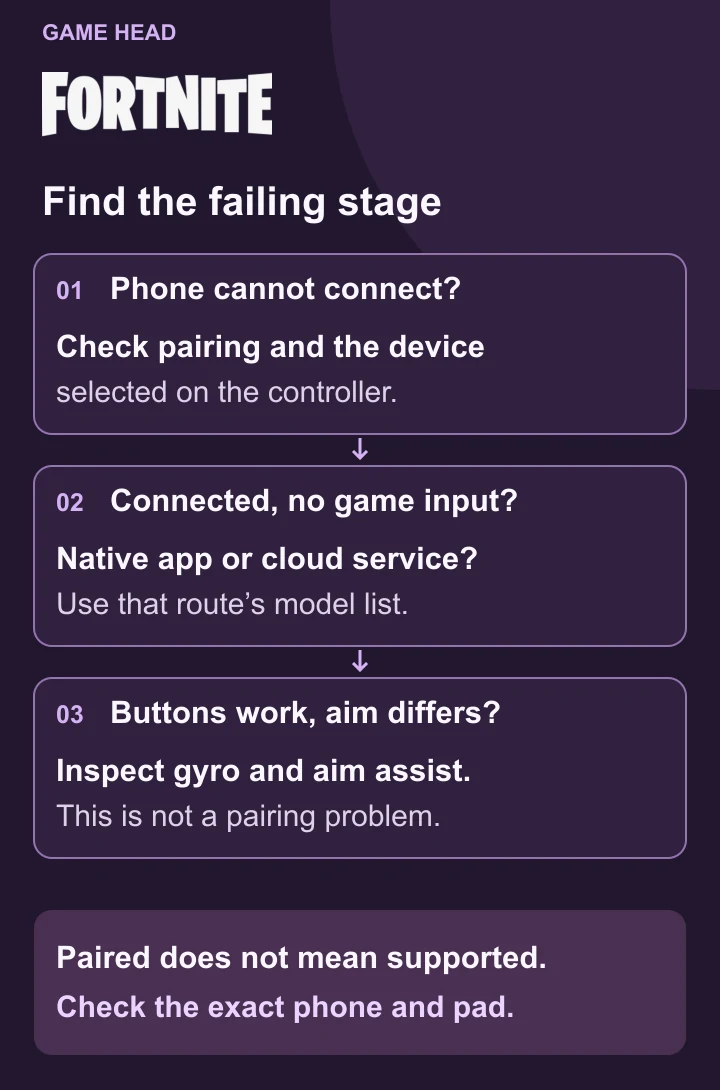
Find the failing stage
| What happens? | Check next |
|---|---|
| The phone cannot connect to the pad | Bluetooth pairing and the controller’s selected device. |
| The phone connects, but Fortnite ignores it | Native app or cloud service, then that route’s supported models. |
| Buttons work, but aiming feels different | Controller options and gyro, not Bluetooth pairing. |
| Inputs arrive late in a streamed game | The stream’s network connection as well as the controller. |
Installed app or cloud session?
If Fortnite itself is installed on your phone, use its native mobile controller guidance. If you launch the game inside Xbox Cloud Gaming, GeForce NOW or Amazon Luna, use that provider’s mobile-device list. A home-screen shortcut can open a cloud session, so check the service you actually launch.
For example, a pad working through GeForce NOW does not establish that the same phone and pad will work in the installed Android game. Treat changing the play route as a different compatibility check, rather than proof that one controller is broken.
Native Android: check Epic’s current list
Epic’s Android FAQ currently names the Xbox Wireless Controller, Sony DualSense, Sony DualShock 4, Razer Kishi V2 and Kishi Ultra among its supported models. These are examples, not an exhaustive list. Check the exact model and its phone requirements before buying a replacement.
Epic’s peripheral guidance also says it cannot test every device combination. A different controller working in another Android game is useful information for support, but does not establish Fortnite compatibility.
Native iPhone and iPad: a separate list
Epic’s iPhone/iPad FAQ (German) says the native game supports most MFi controllers and gives Gamevice and Steelseries Nimbus+ as examples. MFi means Made for iPhone/iPad. Do not turn that wording into a guarantee for every Bluetooth pad or copy the Android list over to iOS.
Pair a Bluetooth controller with iPhone or iPad
For a Bluetooth model compatible with your Apple device, follow Apple’s pairing instructions (German):
- Put the controller in pairing mode. Follow your controller’s instructions for its Bluetooth pairing buttons. The combination depends on the model.
- Select it on your iPhone or iPad. Open Settings → Bluetooth and select the controller from the nearby devices.
- Check the connection. Confirm the controller is connected to this phone or tablet. If pairing fails, follow Apple’s update and re-pairing guidance before troubleshooting Fortnite.
Pairing completes the phone connection; Fortnite compatibility remains a separate check. For a wired model, use its manufacturer’s connection instructions instead of these Bluetooth steps.
Cloud gaming: check the provider and phone
- Xbox Cloud Gaming: tested controllers. Check the mobile device and connection type, not just an Xbox logo on the pad.
- GeForce NOW: system requirements. Use its Android or iPhone/iPad section. NVIDIA lists Xbox controllers and Sony DualSense/DualShock 4 for both, with MFi Bluetooth controllers also listed for iPhone/iPad.
- Amazon Luna and other streaming routes. Epic links each provider’s compatibility information; do not assume a model listed for one service is supported everywhere.
If buttons respond but the streamed picture reacts late, also investigate the network. NVIDIA recommends a 5 GHz Wi-Fi connection and provides a network test in its requirements. That recommendation concerns GeForce NOW; it is not a promise that changing Wi-Fi will fix an unsupported pad.
Buttons work, but aim assist does not
That is a different problem from controller detection. Epic’s aim-assist instructions point to Settings → Controller Options → Sensitivity: enable Advanced Options and inspect Aim Assist Strength. Epic specifies 100%, or a lower value if you prefer. Aim assist is disabled while gyro is active. Changing sensitivity will not make a disconnected controller appear.
Still stuck? Save a useful support report
Note your phone model, OS version, exact controller model, Bluetooth or cable connection, native Fortnite or cloud provider, and the buttons that fail. Add whether those same buttons work in another supported app. This separates “no input at all” from a missing trigger or delayed stream without wiping your settings on a guess.
Using the pad in another game too? Its rules may differ: see our Genshin Impact Android controller requirements and Wuthering Waves mobile controller setup.
Common mobile-controller questions
Does any Bluetooth controller work with Fortnite mobile?
No blanket guarantee applies. Check both the phone/controller combination and the supported models for native Fortnite or your chosen cloud provider. Bluetooth pairing alone is not a game-compatibility test.
Can I use a mouse and keyboard instead on mobile?
Epic says mouse and keyboard cannot be used to play Fortnite on mobile devices, whether the game is installed natively or streamed. Do not treat a controller problem as proof that this alternative will work.
Why does aim assist stop when the controller still works?
Epic states that aim assist is disabled while gyro is active. Check that setting separately from Bluetooth pairing and controller recognition.