
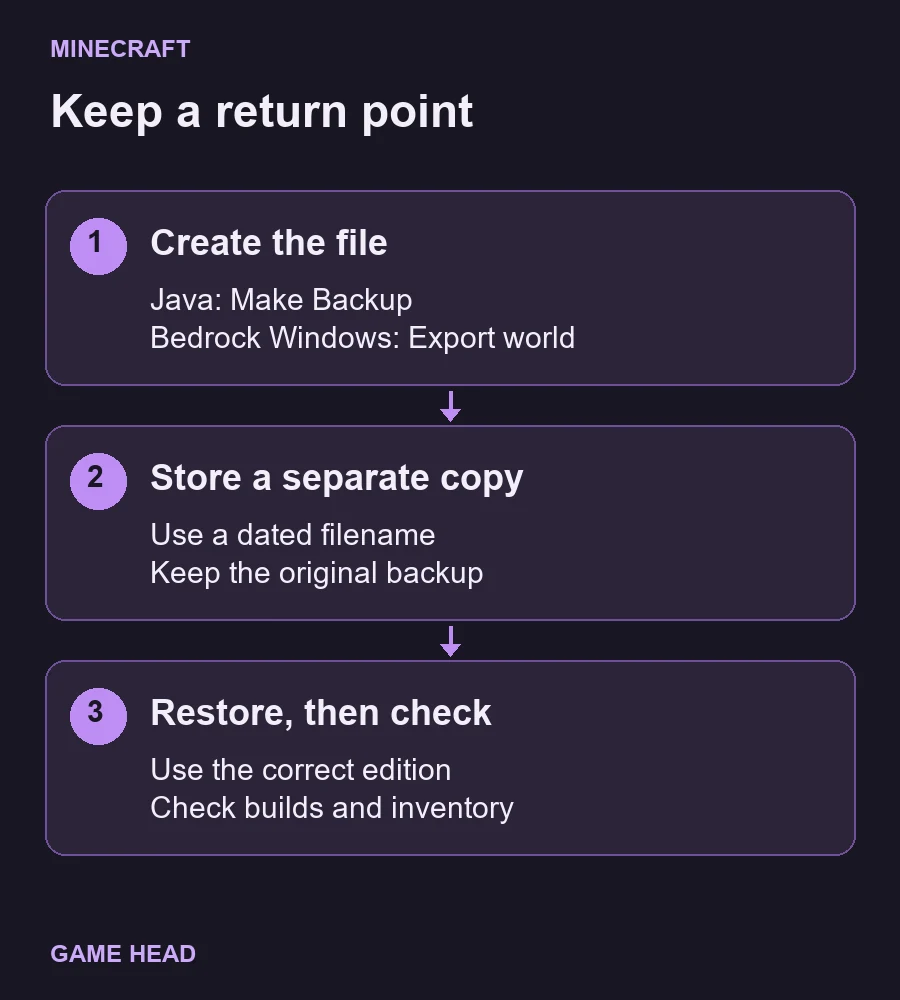
For a local Minecraft world, use Java Edition’s Make Backup option or export the world from Bedrock on Windows. Keep the resulting file outside the live game folder. To return to that save, unpack the Java backup into the correct installation’s saves folder or use Bedrock’s Import world option. Start with a separate restored copy so you can check it before replacing anything.
Choose your edition first
| Your game | Backup route | Return to the saved world |
|---|---|---|
| Java Edition on a computer | Make Backup → ZIP file | Extract the backup into the right saves folder |
| Bedrock Edition on Windows | Export world | Play → Import world |
| Bedrock on a console or phone | Use the device-specific instructions | Do not apply the Windows file route blindly |
Not sure which edition you use? Our Java and Bedrock guide explains the distinction. A Windows PC can run either edition; “PC” alone is not enough to choose a method.
Java: create the backup
The official Java backup instructions use the world-selection screen, so you do not need to find a save directory first.
- Open Java Edition and choose Singleplayer.
- Select your world, then Edit.
- Choose Make Backup.
- Use Open Backups Folder to locate the dated ZIP.
Copy that ZIP to your chosen backup location. Give each return point a recognisable date instead of continually replacing one file called “latest”. A copy on another storage device also helps if the original drive fails.
Java: restore a separate copy
Save and leave your world, then close the game before working on its files. Keep the present world and the original backup intact. Follow Mojang’s Java world-transfer procedure: extract the ZIP and place the extracted world folder in the installation’s saves directory. Use a distinct folder name if that name is already occupied; do not agree to an overwrite just to clear the dialog.
For the standard installation, Mojang lists %appdata%\.minecraft\saves on Windows and ~/Library/Application Support/minecraft/saves on macOS. If you use a different game directory, check that installation rather than assuming the default. The official backup-location guide also describes opening the relevant installation folder from the launcher.
Start Java Edition and look under Singleplayer. Open the restored copy and check a familiar build, your location and inventory. If the world is absent, confirm that you chose the right installation and actually extracted the archive. Keep your source ZIP unchanged while you investigate.
Bedrock on Windows: export the world
Use Mojang’s current Windows export route instead of relying on an old internal AppData path.
- Choose Play, then the pencil icon beside the world.
- In General Settings, find File management and choose Export world.
- Review any export options; do not change an unfamiliar option just for a routine backup.
- Choose Export world, select your destination and finish the export.
Find the actual exported file in your destination folder before you reset a device or remove the game. Store a dated copy separately. An extra world entry inside the same installation is useful for experiments, but it does not protect you if that installation’s saved data disappears.
Bedrock on Windows: import and check
The official import instructions start in Minecraft: Bedrock Edition: choose Play → Import world on the Worlds tab, locate your saved world file and import it. The world then appears among your single-player choices. Keep the backup file while you verify the imported world.
- Check the world name and a known building before continuing your main playthrough.
- If you use add-ons, check the restored world’s packs and expected behaviour too.
- Use a game version appropriate to that save. A backup is a return point, not a promise that any older client can open a newer world.
What this will not recover
A backup returns the state captured when it was made; it does not include later builds. Exporting a world after a mistake preserves that later state, not an earlier one. If you have no older copy, avoid deleting the remaining world while looking for other backups.
Realms recovery and console or phone storage have their own workflows. Use the official Backup & Restore section for your device rather than applying Windows file instructions to it.
Questions about Minecraft world backups
Why does my Java backup not appear in Singleplayer?
Check that you extracted the ZIP and placed the world folder in the saves folder of the installation you are using. Keeping the ZIP in the backups folder alone does not restore a playable world. Keep the original ZIP and your existing world while you check the folder.
Can I use these Bedrock Windows steps on a phone or console?
Use the instructions for your device. The export and import routes in this guide cover Bedrock on Windows; they are not a universal storage or recovery procedure for every Bedrock device.
Can a new backup bring back progress I already lost?
A new backup captures the world as it is now. It does not create an earlier save or restore later builds missing from an older backup. Keep the remaining world while you look for an older copy or another recovery route for your device.